Ransomware has been making the news lately with the WannaCry and, more recently, Petya strains grabbing the headlines. These threats were so dangerous because they easily spread to unpatched computers. The reason these malware attacks were so effective was because they used a zero day exploit that was developed for cyber attacks by the U.S. National Security Agency (called EternalBlue). The exploit was made public by hacking groups and Microsoft did develop patches to protect their systems, but the issue is that many systems remained unpatched resulting in outages to many businesses. More exploits are being released. The CIA hacking tools were released on Wikileaks in March 2017 (https://wikileaks.org/ciav7p1/) which will no doubt lead to further malicious threats being released in the wild.
So what is a patch? These are software updates to the system developed by the software vendor. Microsoft regularly releases patches to improve performance or fix security flaws on Windows systems. These show up as Windows Updates. It is a good idea to apply these updates as they are released. In fact, Windows 10 doesn't give you the option, it enforces the updates automatically. This does require internet access in order for the updates to be downloaded though.
So the computers most effected by these exploits were running older Windows systems (mainly Windows 7) and Microsoft took the rare step of releasing a security patch for Windows XP (which is no longer supported and doesn't get security updates any more). Even though WannaCry preceded Petya, many systems were still impacted when Petya was released. Initially it was thought that Petya was another ransomware threat but it turned out that it was not possible to get the encryption keys and the email address used to contact the criminals was shut down, making it impossible to get in contact, even if a company wanted to. It would appear that Petya was written to destroy data while acting like ransomware. As this threat first appeared in the Ukraine, it would seem that they were the initial targets of the attacks, which subsequently spread to the rest of the world.
With the continued release of these exploits that are used by nation states for cyber warfare, it raises issues about disclosure to the software vendors. Is it ethical for a government to withhold these zero day exploits from the vendors, especially when they can be used for criminal purposes? More to the point, it has become critically important that companies maintain regular updates to avoid being attacked by malware. It is surprising to me that many companies do not stay on top of this. For the home user, it is also important to ensure that they maintain regular patching for their system and software they use (such as Microsoft office, Adobe reader, Adobe flash and java etc). Be aware though that updates must come from a trusted vendor site and not a third party website as these can be used to inject malware instead of legitimate software. For more information on how to maintain patching in Windows go to https://support.microsoft.com/en-us/help/12373/windows-update-faq. For Apple Macs check this link https://support.apple.com/en-au/HT201541.

Monday, 3 July 2017

Thursday, 1 June 2017
Backups
TL;DR
- Backups are not often considered important
- Cloud storage services can mitigate risk of data loss
- External drives and NAS are other options for backup
- Test backups and keep a copy offline
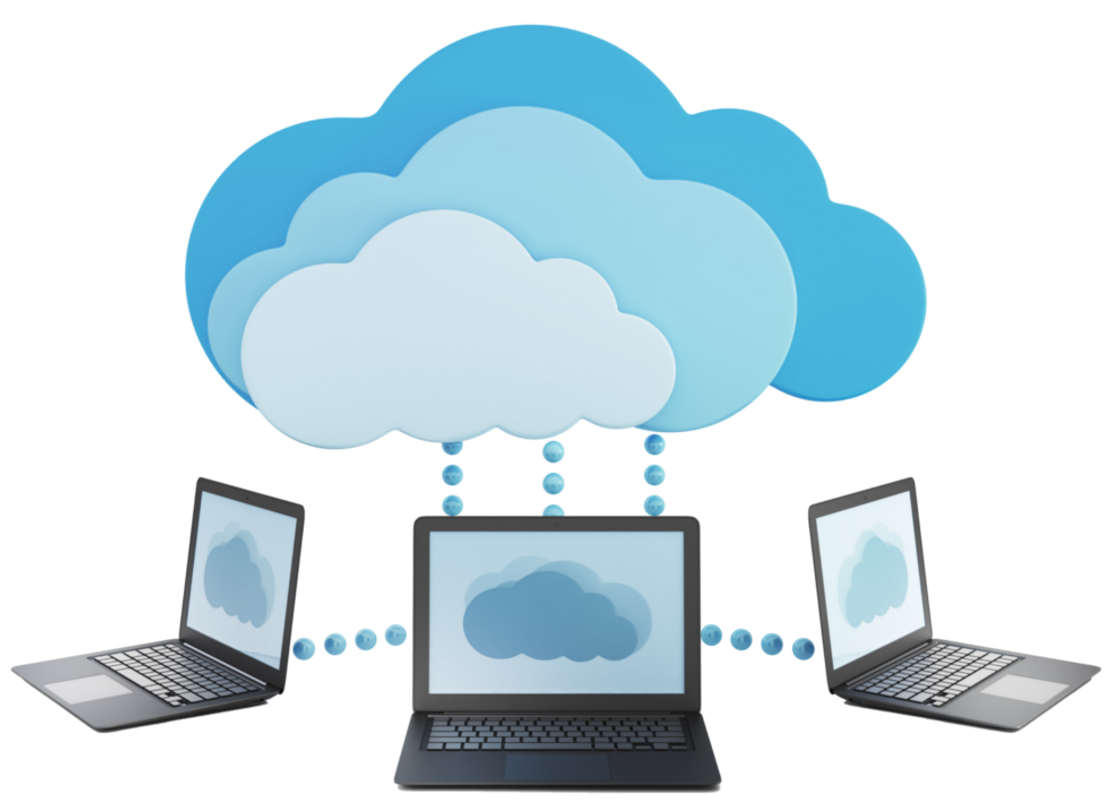
For most people, backups are the sort of thing you don't pay attention to until you need them. A number of clients have recently required specialist data recovery as their hard drives had failed and they wanted to get back their precious photos and documents. These services can cost upwards of $1000 so it is generally the last resort. The reality is that hard drives and storage devices do fail, so it is always worth have at least 2 copies of your data. Fortunately there are a number of ways you can do this these days.
Cloud services such as Dropbox, iCloud, Google Drive or Microsoft's OneDrive are all ways that you can store documents and photos somewhere other than your PC. Most cloud services offer a free service but this is usually limited to a few gigabytes of storage. This won't last long as photos and videos will easily fill that space in a very short time. Paid options are worth looking at (especially compared to the price of professional data recovery) and if you are bundling in your subscription with other services, this can be good value. In the case of Drive and One Drive, if you are paying for the G Suite or Office 365 packages then you will get increased storage bundled in with those plans (see https://gsuite.google.com.au/intl/en_au/pricing.html and https://products.office.com/en-au/office-365-home). The other benefit of cloud storage is that you can access your files from other devices and locations. Be aware though that you will need a reasonable internet connection and data quota in order to sync your files to the cloud.
A more traditional option is to backup to an external drive. These are readily available from Officeworks, or other tech stores, and a reasonably sized 2 TB portable drive will cost around $100. Windows PCs and Macs require require an initial setup to connect the external drive for backup, but once this is done, they will automatically backup after that. The guide to backing up in Windows 10 is available at https://support.microsoft.com/en-us/help/17143/windows-10-back-up-your-files and for Macs you can access this at https://support.apple.com/en-au/mac-backup.
Another option for local backup is to use Network Attached Storage (NAS). These are essentially hard drives that connect to your network and can be used as centralised storage for backups and file sharing (photos, videos etc.).
The benefit of NAS is that you can backup multiple computers to the same storage on the network.
QNAP and Synology are popular brands and their products start from $150. You may need to purchase the hard drive separately so consider this when evaluating these options. To backup to a NAS device, you will typically use the software that comes with the product. Ensure that your router is fast enough to support the network traffic (at least gigabit ethernet). For more information go to https://www.qnap.com/en-au/ and https://www.synology.com/en-global/support/nas_selector.
Cloud and local drive backups are not exclusive and I would recommend using both. Having multiple backups can reduce the risk of losing your data to a ransomware attack or other failure. It is also worth testing your backups by restoring a file every now and then. You don't want to find out after the fact that your backups are not working, so test these regularly. So before your computer storage fails, make the effort and get a good backup, fast!
Monday, 1 May 2017
NBN Address checker

If you were wondering when the nbn will be available at your home or business, the nbn have recently improved their address checker on their website (http://www.nbnco.com.au/connect-home-or-business/check-your-address.html). This will now give an estimate of the availability of the nbn at your address and the type of connection you can get. It is based on nbn's updated three year construction plan. If a rollout is not planned or underway then you will be advised that you can access the skymuster satellite service. This is an improvement as previous searches only advised when building may commence and did not give a detailed description of what you may be able to access.
In the Chittering Shire, the address checker advises that nbn fixed wireless services are planned to be available in March 2017 in Upper Chittering. It should be noted that these plans are subject to change, but this is looking promising for that area. Lower Chittering and Bindoon are slated for October to December 2017 and will also be receiving fixed wireless within that coverage area.
Building has also commenced in townsites throughout the Gingin Shire, with some sites already available.
The nbn coverage map is useful if you would like to see how far the fixed wireless coverage goes in your area. It will also show the progress of the fixed wired technologies and can be accessed at the nbn website (http://www.nbnco.com.au/learn-about-the-nbn/rollout-map.html).
Tech for non-profits

Some of the examples of products available under the program are all of Microsoft's licensed products including Office suites and Desktop and Server licenses. There are some limitations as to the number of licenses that can be redeemed within a two year allocation cycle. Similarly, Google's Apps for non-profits (G Suite) is available and this provides access to Google's cloud services for business, such as docs, email, calendar etc. There are also security products available and discounts on accounting software. In addition discounted hardware can also be redeemed, including laptops, desktops and networking equipment. A full list of donors and products can be found here https://www.connectingup.org/discounts. Connecting UP also offer a premium membership model which costs $150 per annum. In addition to accessing the partner program (which is available under free membership), you will also be able to access events, mentoring and promotional facilities provided by Connecting Up (https://www.connectingup.org/membership/benefits).
Joining Connecting Up is as simple as registering your details and providing information about the NFP. Within three working days, your details should be validated and if successful, you can then start ordering from their site. Being listed on the Australian Charities and Not-for-profits Commission Register or income tax exempt on the Australian Business Register will help with qualification for the program. In addition, donor companies may require other criteria to be met for their products. Details can be found at https://www.connectingup.org/help/will-my-organisation-qualify-connecting-ups-donation-and-discount-program.
Once you have qualified and your account is setup for purchasing, you can place a donation request through the Connect Up site. Not all products are free. Some are discounted from retail pricing. In addition, there may be an administration fee charge by Connecting Up when making donation requests. Some partners restrict the number of requests that can be made. The details are available at https://www.connectingup.org/help/how-often-and-how-much-can-i-order-from-each-of-your-partners.
So if you are involved in a NFP group that may benefit from reduced tech purchases, I would recommend taking advantage of the discounts offered by Connecting Up. For more information go to their website https://www.connectingup.org.
Monday, 6 March 2017
Square Up POS app
Square Up is an online provider for payments and point of sale. They started with an Apple only app but have now expanded that to Android devices. The square app can accept payments through these devices using a card reader which you can purchase from them ($59 for the contactless card reader or $19 for the chip reader). Credit card payments processed through Square attract a flat rate 1.9% fee. The benefit of square though is not just in the card processing. In fact, you don't even need to use the payment gateway to access the extensive features of the point of sale app.
The app provides extensive ability for creating shop items and can track insights on purchases and repeat customers (if the details are added). Customer feedback is incorporated into the receipts provided via sms or email. If you already have a payment gateway then you can record the transaction as a paid item and this is tracked against your sales.
Logging into the Square Up web portal provides details on sales history and sales items. This is a very useful resource for small businesses as it provide insight into the top sales items and sales times as well as a number of other metrics. It is also possible to expand the solution to multiple locations (if you have a number of shopfronts).
Square Up also provide an employee management function for $3 per month per employee. Employees can log their time into the app and it also allows restriction of access to certain functions per employee. This may be useful for more complex businesses that have multiple employees.
So for a free app it provides a lot of functionality and can either be used as your payment gateway provider or with an existing provider if you have one. For more information go to the Square Up site at squareup.com.
Square Up also provide an employee management function for $3 per month per employee. Employees can log their time into the app and it also allows restriction of access to certain functions per employee. This may be useful for more complex businesses that have multiple employees.
So for a free app it provides a lot of functionality and can either be used as your payment gateway provider or with an existing provider if you have one. For more information go to the Square Up site at squareup.com.
Monday, 13 February 2017
Anti Virus and Privacy
 It is common these days for software to be available for free. While this has made it easier to access software, vendors still need a business model that generates revenue for them to support the development and maintenance of these products. Anti virus products have followed this trend and there are now a number of free and paid products available. Most of these free products work on the basis that you get basic real time scanning protection with additional functionality available as paid options. Yet these products have deep access to the operating systems and as a result are capable of gathering a lot of information about your computer. The information they gather can be used for marketing purposes and this is of commercial value. Some vendors bundle 3rd party products into their installations to make the products commercially viable. So the question becomes how is your personal information used by these vendors?
AV comparative's performed analysis of 21 anti virus products and documented the results in their Data transmission in
Internet security products
report (http://www.av-comparatives.org/wp-content/uploads/2014/04/avc_datasending_2014_en.pdf). To evaluate how well the products rated on information disclosure, they reviewed the privacy policy and the end user license agreements (EULA), monitored the information that was sent from the computer and sent a questionnaire to the vendors asking for details of the information that is captured by their products. The information was then collated and vendors were rated on the level of protection provided for user privacy. It should be noted that AV vendors do require some information in order to manage their product licenses and to improve virus detection rates. The main concern though is if that personal information is collated and sold on for marketing purposes. As an example, web sites can be tracked by AV software to ensure that known malicious sites are blocked. Yet it is also possible that this information can be kept and data mined by the vendor.
The AV products that were rated best with respect to personal information disclosure were:
- AhnLab
- Emsisoft
- eScan
- BullGuard
- Fortinet
Products rated the worst (or vendors did not disclose what information they kept):
- McAfee
- Microsoft
- Symantec
- Trend Micro
- Webroot
- AVG
There were many products that had a mixed rating for personal information disclosure. The products rated best for privacy considerations overall were:
- AhnLab
- Avira
- eScan
- Fortinet
- Panda
It should be noted that this report was release in 2014 so may be out of date with respect to the latest product versions. In general, it is worth reading through the EULA and privacy policies to understand how your information can and will be used by the vendors. Also be wary of any 3rd party software that is bundled with the free AV product as this may disclose your personal information too. It is usually best to untick the box for add-ons and other products when installing these products. While privacy seems to be a commodity we are happy to trade for free stuff, it is worth considering the implications of what is done with your information. If you are interested in how you can better safe guard your online information take a look at the EFF's surveillance self-defense site at https://ssd.eff.org/en.
Tuesday, 10 January 2017
Paper replacement apps
Despite
the promises of a paperless office it seems that we are printing and producing
more paper documents than ever. I don't think that will change any time soon
but there some apps that can be used to replace the handy paper pad. I have
been trying out a few apps that are suitable for a Windows 10 tablet with a
stylus. There are a number of options available from the Windows Store, but I
have whittled down the choices to three apps: Nebo, Bamboo Paper and Graphiter.
Nebo, by
MyScript, is my favourite as a paper notebook replacement. You can organise
your notebooks into folders and create separate notebooks for different uses.
One of the best features is that Nebo can convert your handwriting into text.
It does this on the fly and seems to be very accurate, even with my scratchy
handwriting. You can also draw boxes and shapes in diagram mode as well as
math formulas. This can all be exported to Word for further editing purposes. I
did find that the layout of converted text can be tricky to manage but this is
not a big deal if you export it.
Bamboo
Paper, by Wacom (who are known for digital pen editing), is a worthy mention.
For simple note taking, this a very useful app. It doesn’t provide text
recognition but it is easy to use and feels very natural when writing. Paid
features allow you to add highlighters, crayons and paintbrushes as well as a
variety of colours for each of these tools. This is handy if you want to use
the app for sketching and drawing as well as note taking. This is a good all
round pen app but if you want a specialised sketching app then Graphiter may be
a better choice.
Graphiter
provides a pencil for free use but the value of the app comes from the paid
options. This allows you to use coloured pencils, pens and a blending tool. The
ability of this app is only limited by your own sketching prowess. The demo
shows very detailed real life drawings that are possible with the app. You can
customise the heaviness of the pencil as well as the pencil width to allow for
detailed sketching.
Overall I
have found that Windows 10 tablet mode with a stylus is very useful and there
are many choices of apps to make the most of this mode. For further information
follow the links below.
Subscribe to:
Posts (Atom)